Team
Team, invitations and permissions
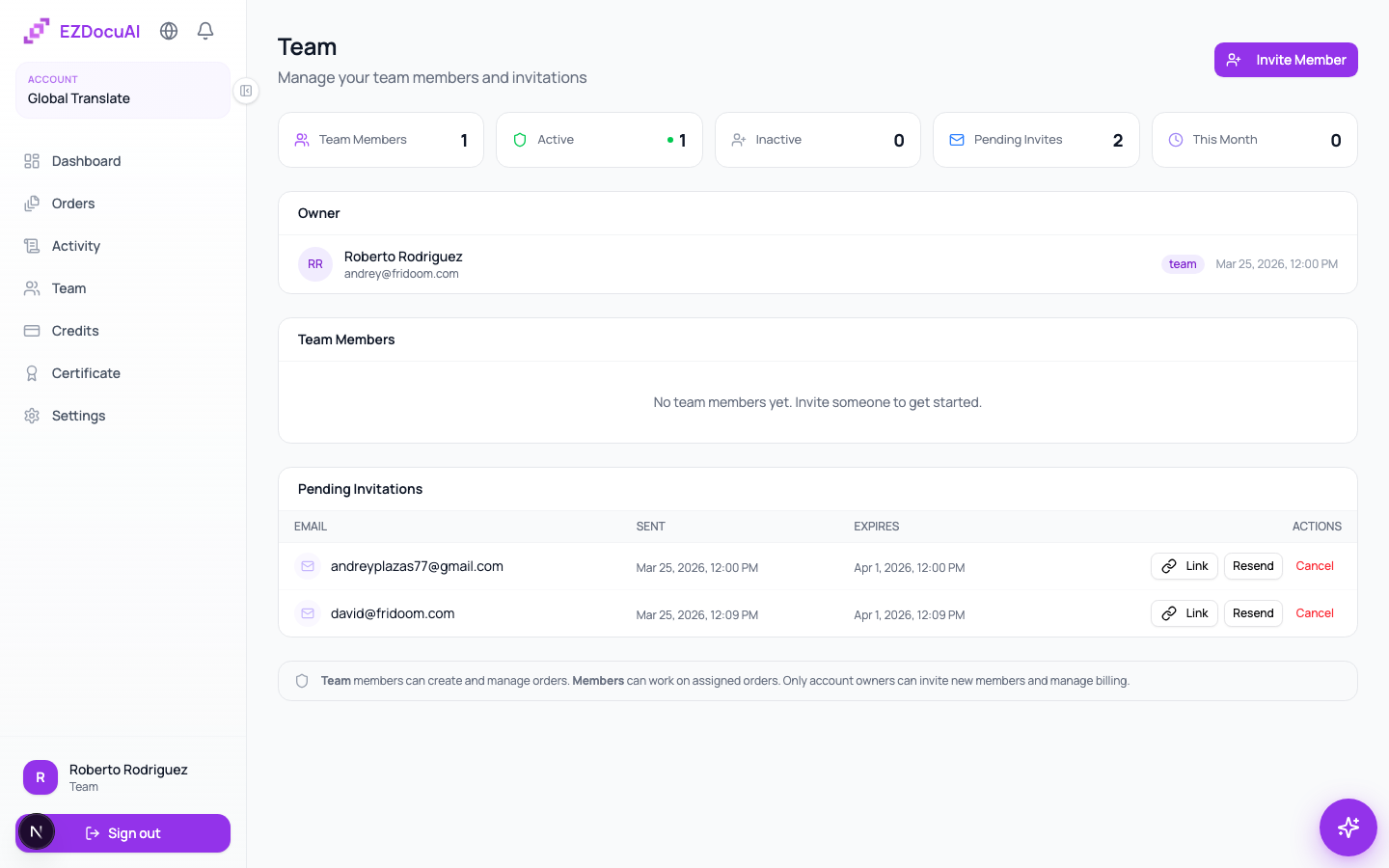
EZDocuAI supports multi-user teams inside a single account. You invite members with different access levels depending on what they need to do: from a freelance translator with scoped visibility to a co-owner with full control.
Available roles
| Role | What they can do |
|---|---|
| Owner | Full control. Only one who buys credits, changes plan, invites/removes members. |
| Team | Create orders, see all team orders, approve translations, manage clients. |
| Member | Sees only the orders assigned to them in their personal workspace. |
| Freelancer | Like Member, but can't see credits or financial history. |
ℹ️ Note:
Owneris designed to be one person per account. For a second admin, useTeamrole or ask support to enable co-ownership.
Invite someone new
- Open Team from the sidebar.
- Click Invite member (top right).
- Fill in:
- Invitee's email.
- First and last name (optional; auto-fills if they already have an account).
- Role from the dropdown.
- Click Send invitation.
The invitee gets an email with a unique link (valid 7 days) to sign up and join your account with the assigned role. If you prefer another channel, copy the invite link manually from Pending invitations.
Resend or cancel an invitation
Under Pending invitations, each row has:
- Resend — re-sends the same link by email.
- Copy link — to clipboard, useful for WhatsApp or Slack.
- Cancel — invalidates the link immediately.
Change an active member's role
From the Team members list, click the ⋮ menu next to the name and pick Change role. The change is immediate and visible the next time they refresh.
⚠️ Careful: downgrading someone from
TeamtoMemberrestricts their visibility of team orders. They don't lose their own orders but stop seeing others'.
Remove a member
⋮ menu → Remove member → confirm. Orders they've created stay in the account; only their access is revoked.
Limits per plan
| Plan | Team max | Freelancers max |
|---|---|---|
| Pay-as-you-go | 3 | 10 |
| Starter | 10 | 25 |
| Team | 25 | 50 |
| Enterprise | Unlimited | Unlimited |
Freelancers don't count against the regular team limit.
Transfer ownership
For security, this can't be done from the UI. Open a ticket asking for the transfer; we validate identity of both parties before executing.
FAQ
Do members consume credits separately? No. Every member spends from the account's shared balance.
Can a freelancer upload orders? Yes, if the Owner assigns orders to them. The freelancer only sees those orders in their workspace.
Can I invite someone who already has an EZDocuAI account? Yes. When they accept, they join yours but keep their original. They switch between them at sign-in.
Is there an audit log? Yes, in the Activity screen you see every action by member (create order, approve, download, invite, etc.).