Orders
How to upload a document for translation
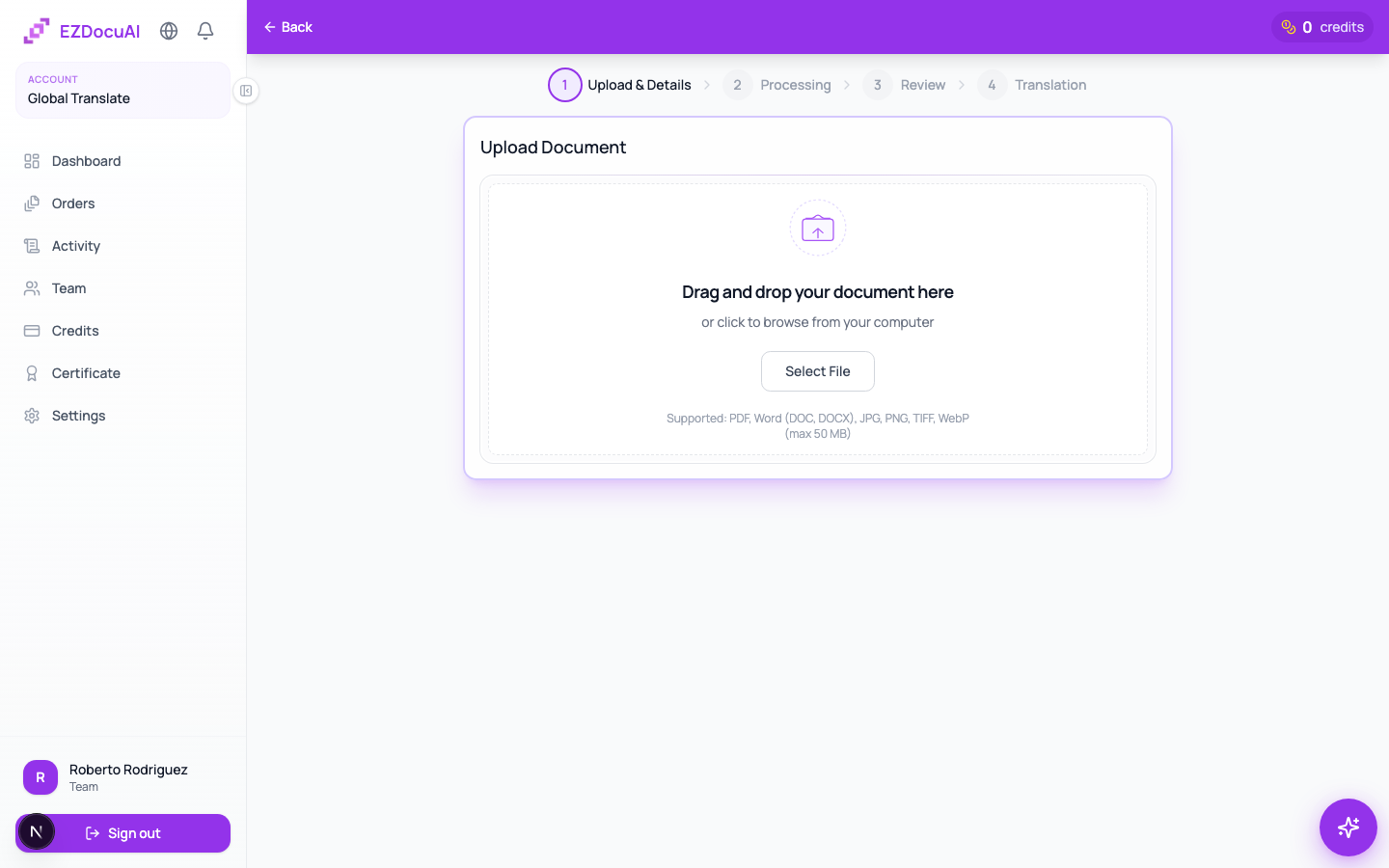
Uploading a document in EZDocuAI takes less than a minute. We accept any file that contains readable text: official documents (birth certificates, diplomas, passports, contracts), business documents (invoices, receipts, correspondence), screenshots (emails, WhatsApp, apps, web pages), photos of text (signs, menus, handwritten notes) or digital files (PDF, Word, TXT). The system detects the language, analyzes the pages, and shows you an exact credit estimate before you confirm.
What you can translate
EZDocuAI translates any file that contains text, not just official documents. If you can upload it as an image or PDF and the text is readable, the system processes it. Common examples:
- Official documents: birth certificates, diplomas, passports, IDs, contracts, powers of attorney, court rulings.
- Business documents: invoices, receipts, corporate correspondence, reports, financial statements.
- Screenshots: emails, WhatsApp/Slack conversations, web pages, mobile app screens.
- Photos of text: signs, menus, book pages, handwritten notes, whiteboard annotations.
- Digital-native files: PDFs, Word docs, and TXT files with selectable text.
If your image shows text that is legible to the eye, EZDocuAI can translate it. The built-in OCR recognizes the text and the engine translates it to the target language you choose.
Before you start
- You have an active account (if not, create one).
- You have available credits or a card on file. Check your balance in the Credits section of the sidebar.
- Your file is under 50 MB and is in one of these formats: PDF, Word (.doc / .docx), JPG, PNG, TIFF, WebP.
Steps
- From the dashboard, click the purple New Order button (top right) or open Orders → New Order in the sidebar.
- In the Upload & Details step, drag your file onto the dashed drop zone or click Select File to pick it from your computer. Up to 10 files per order.
- Once uploaded, choose the source language (the document's original) and the target language (what you want to translate into). If the doc mixes languages, enable Mixed languages and pick the dominant one.
- (Optional) Associate a client from the Client dropdown, add internal notes for your team, or tick options like Handwritten mode for manuscripts.
- Click Continue to review to see the exact page count, credit cost, and delivery estimate.
- Review the summary and confirm with Create order. Your order appears in the list with status
Uploadedand enters the pipeline.
Formats and limits
| Format | Max size | Notes |
|---|---|---|
| 50 MB | Both text-based and scanned work | |
| DOCX | 25 MB | Layout preserved |
| JPG / PNG / TIFF / WebP | 25 MB | Auto-routed through OCR |
⚠️ Important: password-protected PDFs aren't supported. Open and re-save without encryption before uploading.
💡 Tip: if you're uploading several loose pages (phone photos of the same document), combine them into one PDF first — the result keeps a cleaner layout.
What happens next
Once created, the system automatically kicks off a 4-stage pipeline:
- Upload & Details (already done).
- Processing — text extraction and OCR when needed. The order moves on automatically once this finishes.
- Review — if OCR ran, we ask you to validate the recognized text. If it was already searchable, we skip this.
- Translation — generation and review of the translation. You get an email when it's ready to approve.
Troubleshooting
File is over 50 MB. Compress with Adobe Acrobat (Reduce file size) or any online tool. If it's an image, lower its resolution.
"Encrypted PDF" error. Open in a viewer, re-save without password (Save as…), and try again.
Progress bar stuck. Try with the latest Chrome. If it keeps failing, open a ticket or message us from the floating widget in the corner.