Account
Configure your account and preferences
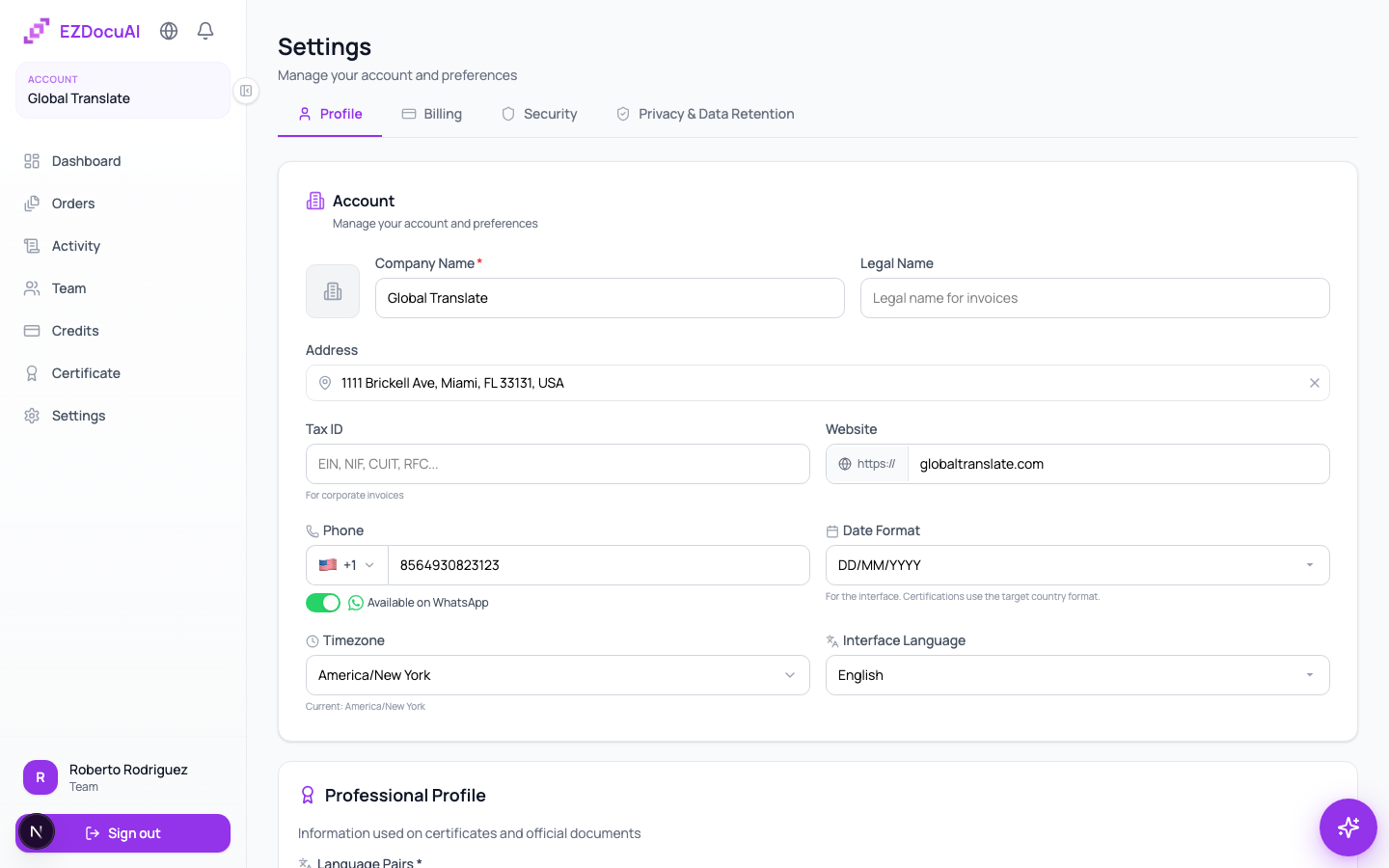
The settings screen is where you customize your profile, change your password, tune notifications, and manage tax info for invoices.
Available sections
- Profile — name, email, avatar, timezone.
- Password — change and session management.
- Brand — logo and colors for certificates (Team and Enterprise plans).
- Billing — tax info for invoices (VAT, EIN, etc.).
- Notifications — which events email you.
- Language and region — UI language and date format.
- API keys — integrations with your system (Team and Enterprise plans).
Change your email
- Settings → Profile → Email field.
- Enter the new email.
- Click Save changes.
- We send a confirmation link to the new email. Until you confirm, you stay logged in with the previous one.
Change your password
In Settings → Password:
- Enter your current password (security).
- Enter the new one (at least 10 characters, at least one number).
- Confirm by repeating.
- Save. All active sessions are closed except the current one.
💡 Tip: use your browser's password manager or 1Password / Bitwarden. Long random passwords beat "complex but short" ones.
Forgot your password
On the sign-in screen click Forgot password?. Enter your email; you'll receive a reset link valid for 1 hour.
Timezone and date format
In Language and region, pick your timezone (affects history timestamps) and preferred format (DD/MM/YYYY vs MM/DD/YYYY). Emails follow this setting too.
Notification preferences
You can disable emails by type:
- Orders — status updates (Uploaded → Processing → Completed).
- Team — invitations, role changes.
- Billing — purchases, invoices, credit adjustments.
- Product — news and improvements (marketing).
Turning everything off doesn't silence critical emails (password resets, security alerts).
Tax info for invoices
If your organization needs invoices with your tax info, fill it in Billing:
- Legal name.
- Tax ID (VAT, EIN, RFC, CUIT, NIF, ABN depending on country).
- Tax address.
- Country of taxation.
Future invoices use that data. To re-issue an invoice already generated, open a ticket.
Delete your account
At the bottom of the screen, in the danger zone, you'll find Delete account. Confirming:
- Cancels your subscription.
- Permanently deletes all files and orders.
- Unconsumed credits are lost.
- This cannot be undone.
If you only want to pause, cancel your subscription without deleting the account.
FAQ
Is there a mobile app? Not yet. The web is optimized for mobile on main views, but the OCR editor works better on desktop.
Can I have multiple accounts with the same email? No. One email = one account. To separate agencies, use different emails.
Can I change my account's owner? Not from the UI. Open a ticket asking for the transfer; we validate identity of both parties.